
The two most popular ways to connect to an EC2 instance are to connect by using EC2 Instance Connect or using SSH. In this tutorial, I’ll show you how to connect using the latter.
Creating an EC2 Instance
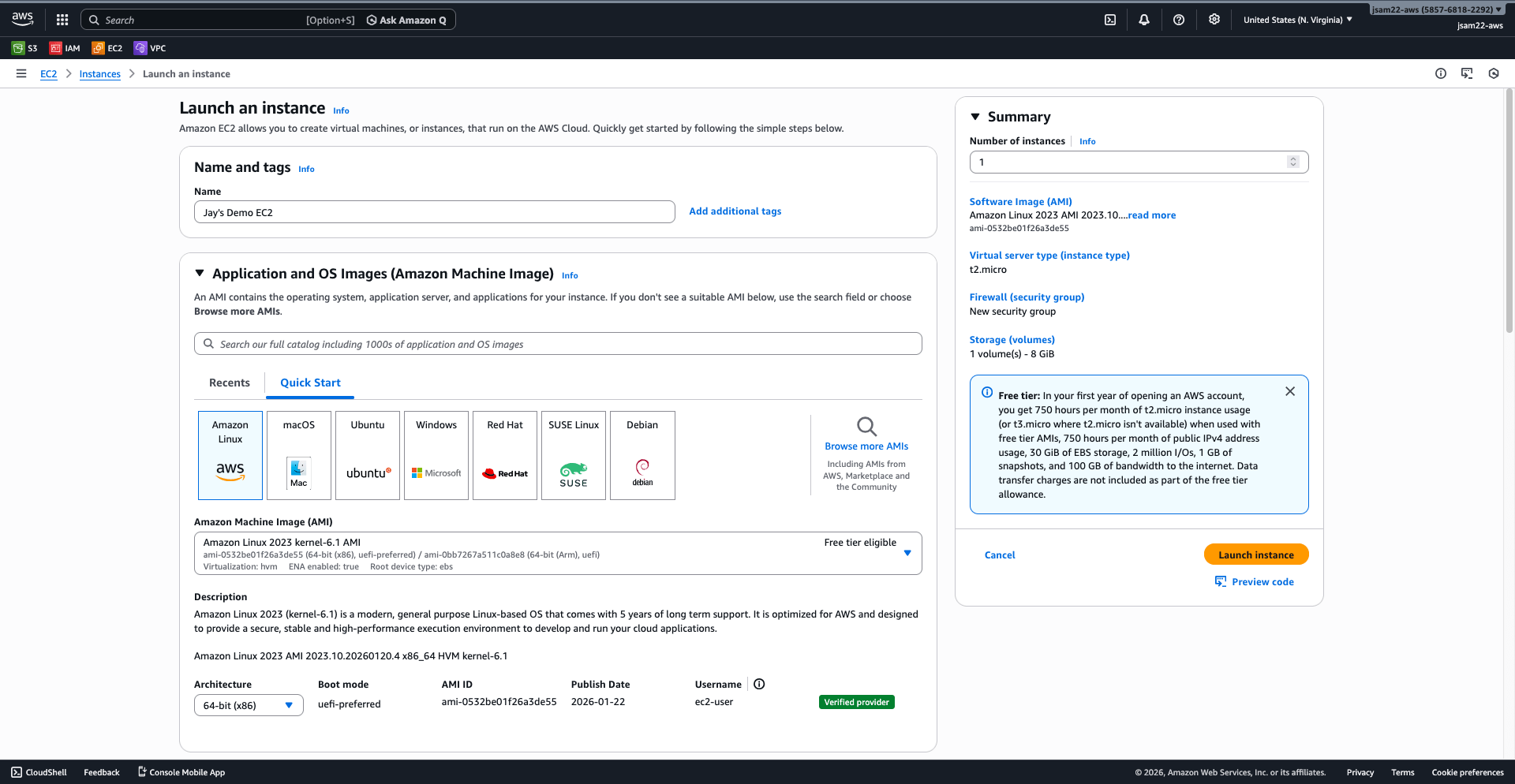
Firstly, you’ll need to create an EC2 instance and give it a name. I’ve called my EC2 instance Jay’s Demo EC2. You can leave the Application and OS Images settings as default / Amazon Linux. I’ve used t2.micro as the server / instance type to avoid incurring any costs.
Scroll further down and you’ll see two sections: Key pair (login) and Network settings.

For the Key pair section, choose Create new key pair. Give it a name and click Create key pair to create it. We’ll need to keep it handy, as we’ll need it to SSH into our EC2 instance later.

Once our key pair has been created, we can continue with the rest of our instance setup.
In the Network settings section, we’ll select Create security group and select Allow SSH traffic from Anywhere. (Of course in production environments, you should not allow SSH access from anywhere as this opens up access to your instance from any IP address in the world as long an attacker has access to your key pair – I’ve set it up in this way for demo purposes only.)
And that’s it for creating the EC2 instance. You can now click Launch instance and AWS will provision your instance. You may need to wait a few minutes for it to start up fully.
Connecting to our EC2 Instance using SSH
Once our EC2 instance has been created, we’ll need to open up our terminal.
Navigate to the folder where your key pair file is located. I’ve used the ls command to confirm my key pair file is in my Downloads folder.
ls Jays-Key-Pair.pem

Now, use the command:
chmod 400 Jays-Key-Pair.pem

The chmod command above ensures that your key pair is not publicly accessible. If your key is publicly accessible, AWS will prevent you from using it to connect to the instance for security reasons.
From here, head back to your EC2 instance settings and locate its public IPv4 address.

Once the key pair file permissions have been set correctly and you’ve copied your instance’s IPv4 address, you can now connect to the instance by using:
ssh ec2-user@[your-public-ipv4-address] -i [your-key-pair-file.pem]
For me, it would look like this:
ssh ec2-user@100.52.237.86 -i Jays-Key-Pair.pem
Once you’ve done this, you’ll see the terminal warn that the authenticity of the host cannot be established, and asks you whether you want to connect. Type “yes” and press Enter.

And that’s it. You are now connected to your EC2 instance.

From here, you can begin to run commands on your instance. (I’ve used the whoami command below to confirm my username.)

Leave a Reply